5 Common Mistakes in Telugu Photoshop DTP and How to Fix Them
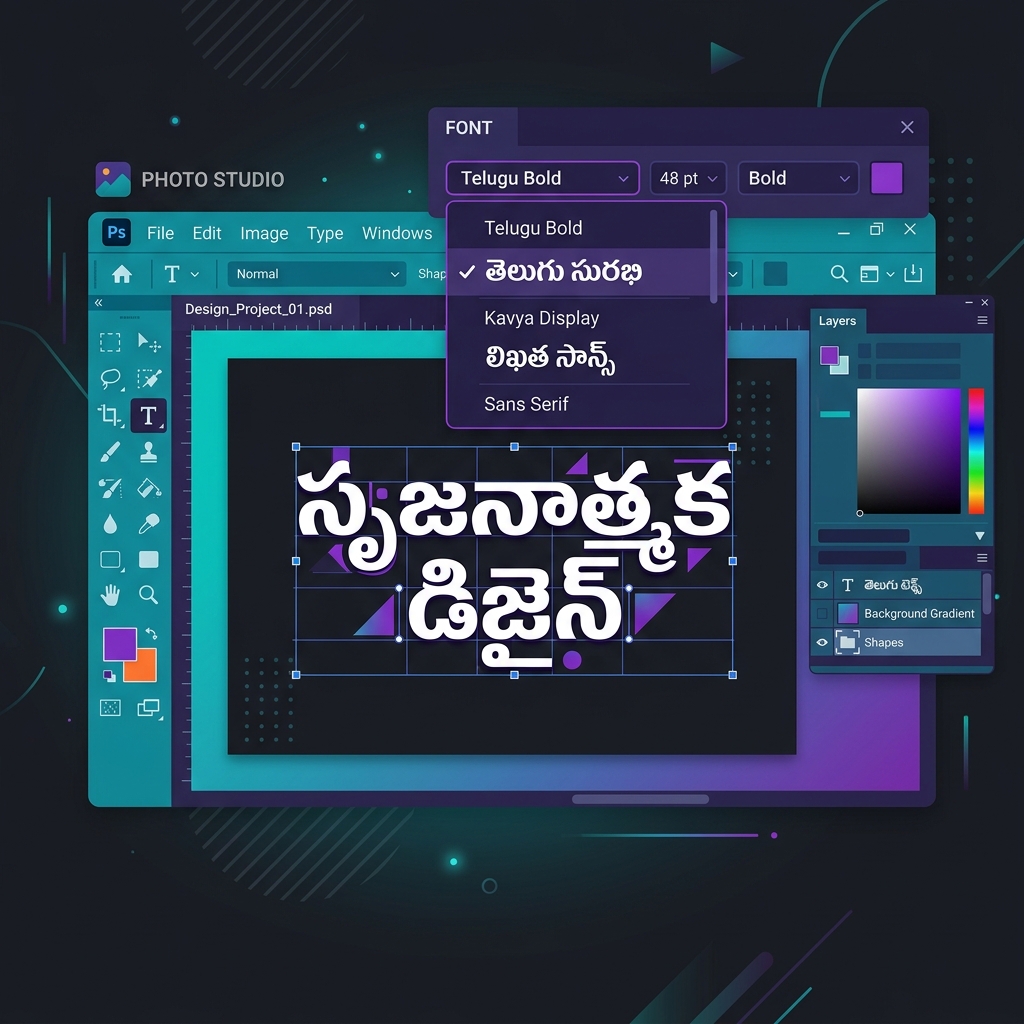
Every Telugu graphic designer who works with Anufonts in Adobe Photoshop or CorelDRAW has encountered the frustration of garbled text, missing glyphs, or characters that simply refuse to render correctly. These issues are not random — they stem from a handful of very specific technical errors that are easy to make and, fortunately, straightforward to fix once you understand them.
In this article, we will examine the five most common mistakes that cause Telugu DTP output to fail, explain why each one happens at a technical level, and provide clear solutions you can implement immediately.
1 Using the Wrong Font Version (Anu7 vs Anu6)
This is perhaps the most common and most frustrating error. You receive a converted text file, paste it into Photoshop, apply the Anu font — and most of the text looks correct, but every syllable containing an "i" vowel (ి or ీ) shows as a completely wrong character.
Why it happens: Anu7 and Anu6 use different byte positions for the i-kara matra and all fused consonant+i forms. A file encoded for Anu7 will display incorrectly with the Anu6 font installed, and vice versa. The difference is exactly one byte offset for approximately 35 glyph positions.
How to fix it: Determine which version of the Anu font is installed on your system. If the text was encoded for the wrong version, re-convert it using AksharaTool by selecting the correct font version before converting. Our tool lets you switch between Anu7 and Anu6 with a single click.
2 Copy-Pasting Unicode Text Directly into Anu Font Layer
Many designers try to copy Telugu text from a website, WhatsApp, or Word document and paste it directly into a Photoshop text layer that has an Anu font selected. The result is always completely garbled — seemingly random Latin characters instead of Telugu.
Why it happens: The text you are copying is in Unicode (UTF-16) encoding, which uses character codes in the 0x0C00–0x0C7F range for Telugu. Anu fonts, however, are legacy non-Unicode fonts that map Telugu glyphs to completely different byte positions in the Windows-1252 (cp1252) or Private Use Area encoding range. When Photoshop receives Unicode Telugu and tries to render it with an Anu font, every character maps to the wrong glyph.
How to fix it: You must convert Unicode Telugu text to Anu font encoding before pasting. Use AksharaTool's "Convert & Copy to Clipboard" feature — it converts the text to PUA-encoded characters that Anu fonts correctly recognize. After clicking the button, simply paste into Photoshop with the Anu font selected.
3 Incorrect Line Spacing and Tracking
Telugu text in Anu fonts sometimes appears with characters overlapping vertically or with excessive gaps between lines. Conjunct characters (vattu forms that appear below the base consonant) may be cut off or hidden behind the line below.
Why it happens: Anu fonts were designed for specific line spacing values. The font's internal metrics assume a certain leading (line height) ratio. Modern software sometimes applies its own auto-leading that does not account for the sub-base glyphs used by Telugu conjuncts. Additionally, Adobe's default tracking and character spacing may compress Telugu glyphs that need more horizontal breathing room.
How to fix it:
- Set Leading manually to at least 140–160% of the font size (e.g., for 24pt text, use 34–38pt leading)
- Set Tracking to 0 or a small positive value (25–50). Negative tracking will cause overlapping glyphs.
- Disable Auto-leading in Photoshop's paragraph options — always set leading explicitly for Telugu text.
4 Broken Conjuncts and Missing Vattu Forms
Some Telugu words appear with the halant (virama) visible as a separate mark instead of the expected conjunct form. For example, instead of seeing the fused "క్క" glyph, you see "క" followed by a visible halant mark and then another "క" — three separate glyphs instead of one combined form.
Why it happens: This occurs when the conversion engine does not correctly handle conjunct chains. Each consonant₁ + halant + consonant₂ sequence needs to be mapped to a base glyph + vattu extension glyph combination. If the converter treats the halant as an independent character rather than as a joining signal, the output will have broken conjuncts.
How to fix it: Use a converter that implements syllable-based parsing — not character-by-character mapping. AksharaTool's engine processes the full consonant cluster before emitting byte values, ensuring that conjuncts are correctly formed. If you encounter a specific conjunct that does not render, report it on our contact page and we will verify the mapping.
5 Encoding Mismatch When Saving and Reopening Files
You create a document with perfectly rendered Telugu text, save it, close Photoshop, and when you reopen it later, the Telugu text has reverted to garbled characters. Or you send the PSD file to a colleague and they see completely different text.
Why it happens: Photoshop stores text layers as Unicode internally, regardless of which font is applied. When you paste Anu-encoded text and it renders correctly, Photoshop is still storing the underlying character codes as Unicode values. If the Anu font is not installed on the machine that opens the file, or if Photoshop performs a font substitution, the text will appear garbled.
How to fix it:
- Rasterize text layers after final proofreading — this converts the text to pixels, preserving the visual appearance regardless of font availability.
- Package fonts with your project files. If sending a PSD to a colleague, include the exact Anu font file they need to install.
- Use Smart Objects for text blocks — they preserve the rendering more reliably than live text layers.
Convert Telugu correctly for DTP — zero encoding errors
Open Converter →